Unlock Your Milwaukee Tool's Secret Superpowers: The ONE-KEY App Guide
Overview
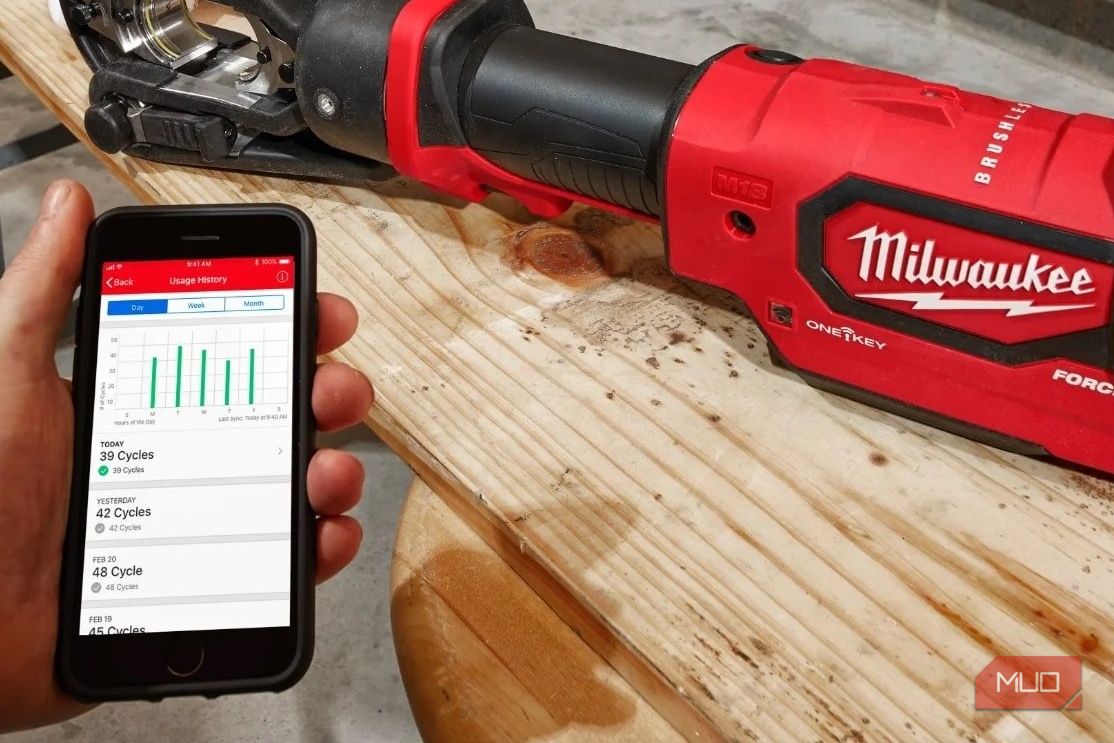
Milwaukee has been integrating Bluetooth technology into its power tools since 2015, a feature most owners rarely tap into. The ONE-KEY app transforms your ordinary drill or impact driver into a smart, customizable tool that can save you time, reduce errors, and even help you recover stolen equipment. This guide will walk you through everything you need to know to unlock these hidden capabilities, from initial setup to advanced customization. Whether you’re a weekend DIYer or a professional contractor, mastering ONE-KEY can give you a significant edge on the job site.
Prerequisites
Before you begin, make sure you have the following:
- A Milwaukee power tool with the ONE-KEY logo (typically found on the tool’s body or battery connection point). Most drills, impact drivers, saws, and other major tools since 2015 are compatible.
- A smartphone (iOS or Android) with Bluetooth 4.0 or higher.
- The ONE-KEY app installed from the App Store or Google Play Store.
- A Milwaukee battery pack (M18 or M12) to power the tool during pairing.
- An internet connection (temporarily required for first-time setup and firmware updates).
Step-by-Step Instructions
1. Download and Install the ONE-KEY App
Search for “ONE-KEY” in your device’s app store. Milwaukee offers two apps: ONE-KEY (the main tool-management app) and ONE-KEY Yard (for outdoor equipment). For this guide, download the standard ONE-KEY app. Install and launch it.
2. Create or Log In to a Milwaukee Account
Open the app and sign up for a free Milwaukee ONE-KEY account using your email. Alternatively, log in if you already have one. This account stores your tool inventory, custom settings, and backup data.
3. Power on Your Tool and Enable Bluetooth
Insert a charged Milwaukee battery into your drill or other ONE-KEY tool. Turn on the tool (squeeze the trigger briefly to wake it up). The tool’s Bluetooth radio activates automatically when it’s powered on. No manual Bluetooth pairing from your phone’s settings is needed—the app handles discovery.
4. Pair Your Tool with the App
In the ONE-KEY app, tap Add Tool (usually the “+” icon on the dashboard). The app will scan for nearby Bluetooth-enabled tools. When your tool appears (e.g., “M18 FUEL™ Drill”), tap it to initiate pairing. Confirm the pairing if prompted. The tool will then appear in your inventory list.
5. Customize Tool Settings
Once paired, you can adjust several parameters:
- Torque Settings: For drills, you can set precise torque limits for specific materials (e.g., drywall, metal, wood). This prevents over-tightening or stripping screws.
- Speed and Power Modes: Adjust the RPM range and power output for different tasks. Some tools offer “Auto” modes that adapt to load.
- LED Light Control: Manage the built-in LED light’s brightness, time-out, and strobe functions.
- Tool Lock: Enable a passcode lock that immobilizes the tool until it’s unlocked via the app—ideal for theft prevention.
Save your custom profile. You can create multiple profiles for different users or job types.
6. Use the Tool Inventory and Tracking Features
Your tool is now registered in your ONE-KEY account. Benefits include:
- Tool Locator: If the tool is lost or stolen, you can check its last known Bluetooth location (within ~30 ft of any phone running ONE-KEY). This “community find” feature helps recover tools.
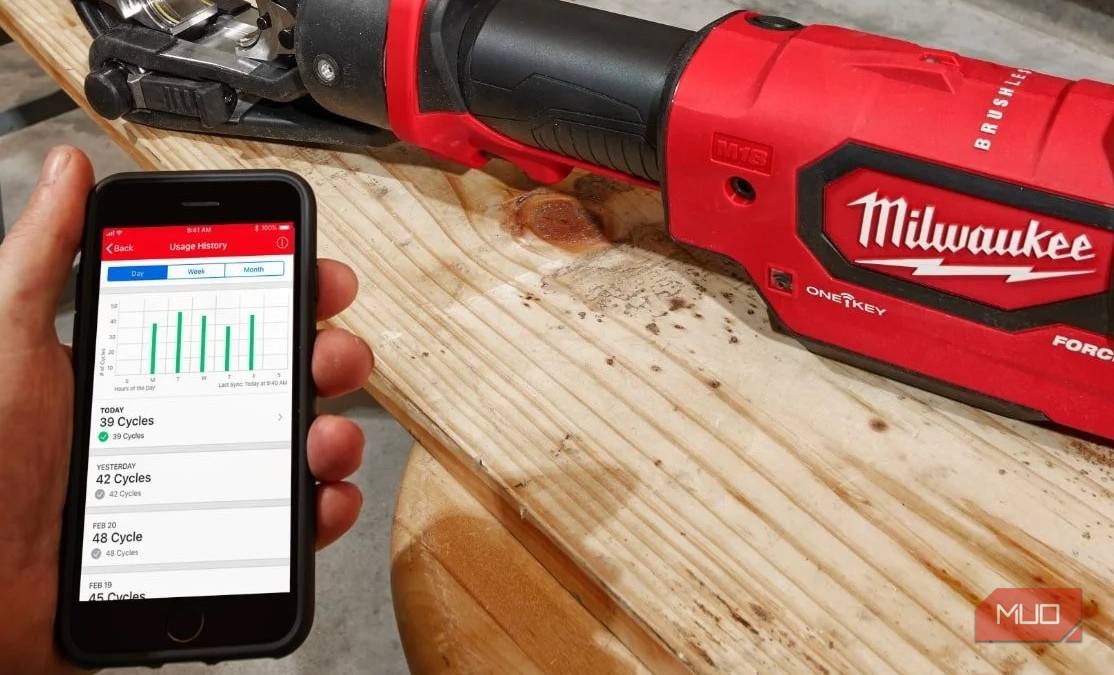
- Maintenance Alerts: The app tracks runtime and can notify you when service is due (e.g., brush replacement).
- Inventory Management: View all your registered tools, their serial numbers, and purchase dates in one place.
7. Perform Firmware Updates
The app will sometimes detect a firmware update for your tool. Tap Update when prompted. Keep your phone near the tool (within 10 ft) and ensure the tool has good battery life. Updates may take 2–5 minutes. Do not turn off the tool or phone during the process.
8. Share Tool Settings with Other Users
You can export your custom profiles and share them with colleagues or crew members. In the app, select a profile and choose Share to send a link. Recipients can import the settings into their own ONE-KEY app to apply to their identical tool.
Common Mistakes
Mistake 1: Trying to pair via phone’s Bluetooth settings. The ONE-KEY app manages pairing internally. Do not attempt to pair the tool manually through your phone’s Bluetooth menu—it may not appear or cause conflicts. Always use the app’s “Add Tool” function.
Mistake 2: Ignoring battery charge. A low battery can interfere with Bluetooth communication and firmware updates. Always use a fully charged battery (~50% or higher) when pairing or updating.
Mistake 3: Assuming all Milwaukee tools are ONE-KEY compatible. Look for the ONE-KEY logo on the tool. Older generations (pre-2015) or some brushed models lack Bluetooth. Check Milwaukee’s compatibility list online if uncertain.
Mistake 4: Forgetting to update the app regularly. Older versions may not recognize newer tools or features. Enable automatic app updates on your phone.
Mistake 5: Overlooking tool lock. Many users enable tool lock but forget the passcode. Use a password manager or write it down in a secure place. The app offers a recovery option via email, but it’s simpler to just remember it.
Summary
The Milwaukee ONE-KEY app turns your power tools into intelligent, trackable assets. By following this guide, you can download and pair your tool, customize its performance, protect it from theft, and keep it up-to-date with firmware. The few minutes spent on setup can save you hours of frustration on the job and potentially hundreds of dollars in replacement costs. Now go grab your Milwaukee drill and unlock its hidden superpower—you’ll wonder why you never used it before.
Related Articles
- Reviving the Humane Ai Pin: How Hacks Turn a Discontinued Wearable into a Standalone Android Device
- Microsoft Named Leader in API Management as AI Demands New Governance
- 6 Ways Fixed-Height Cards Can Break Your Layout
- From Ban to Playback: 10 Crucial Facts About CarPlay Video in iOS 26
- Unlocking the Secrets of Electronic Shelf Labels with TagTinker
- Developer Ecosystem Survey 2026: Join the Largest Global Developer Study
- 7 Things to Know About OpenAI's Fast-Tracked AI Agent Phone
- Transform Your Old Google Home Mini into a Smart Home Hub with Home Assistant